
![その常識が非常識だとしたら。 Are you absolutely sure?]](/assets/img/index/index_main_text.png "その常識が非常識だとしたら。 Are you absolutely sure?")
超短期開発「G-MAST」
常識とされているウォーターフォールやアジャイルは、
本当にそれがベストな手法なのでしょうか。
回りがやっているから。そう教えてもらってきたから。
ただそれだけの理由ではないですか?
もしプログラムが持つ本当のパフォーマンスを生かせる
手法があるとしたら、あなたはどうしますか?
その答えが「G-MAST」です。
本当にそれがベストな手法なのでしょうか。
回りがやっているから。そう教えてもらってきたから。
ただそれだけの理由ではないですか?
もしプログラムが持つ本当のパフォーマンスを生かせる
手法があるとしたら、あなたはどうしますか?
その答えが「G-MAST」です。
プログラムの合理性を極限まで追求した
画期的な制作手法「G-MAST」。
早速その仕組みをご説明しましょう。
画期的な制作手法「G-MAST」。
早速その仕組みをご説明しましょう。

圧倒的に短い制作期間
不完全で時間が掛かる制作手法をいつまで続けますか?
どれほど優秀なコンサルタントに要件定義を策定してもらったとしても、どれほど時間を掛けて事前に仕様を策定していても、
開発中に変更や追加が発生するのはもはや常識です。その度にあらゆる修正が必要になるため、リミットが厳しければ厳しいほど
開発チームに負荷が掛かります。
特に大規模開発の場合、業界標準と盲目的に信じられているウォーターフォールはスケジュールや予算組みがしやすいなどのメリットがありますが、
事前の仕様策定に時間が掛かり、そこから開発に入るため恒常的に発生する仕様変更や追加によって要件定義まで戻って作業をし直す必要があるなど
多くの弊害があります。
また、アジャイルで組み立てたとしてもフロントエンドからバックエンドまでを全て修正する必要があるため、
場合によってはウォーターフォールよりも時間が掛かる場合もあります。
これ以外にも様々な制作手法が存在しますが、現代のIT業界のスピードについて行ける手法はありません。
開発中に変更や追加が発生するのはもはや常識です。その度にあらゆる修正が必要になるため、リミットが厳しければ厳しいほど
開発チームに負荷が掛かります。
特に大規模開発の場合、業界標準と盲目的に信じられているウォーターフォールはスケジュールや予算組みがしやすいなどのメリットがありますが、
事前の仕様策定に時間が掛かり、そこから開発に入るため恒常的に発生する仕様変更や追加によって要件定義まで戻って作業をし直す必要があるなど
多くの弊害があります。
また、アジャイルで組み立てたとしてもフロントエンドからバックエンドまでを全て修正する必要があるため、
場合によってはウォーターフォールよりも時間が掛かる場合もあります。
これ以外にも様々な制作手法が存在しますが、現代のIT業界のスピードについて行ける手法はありません。
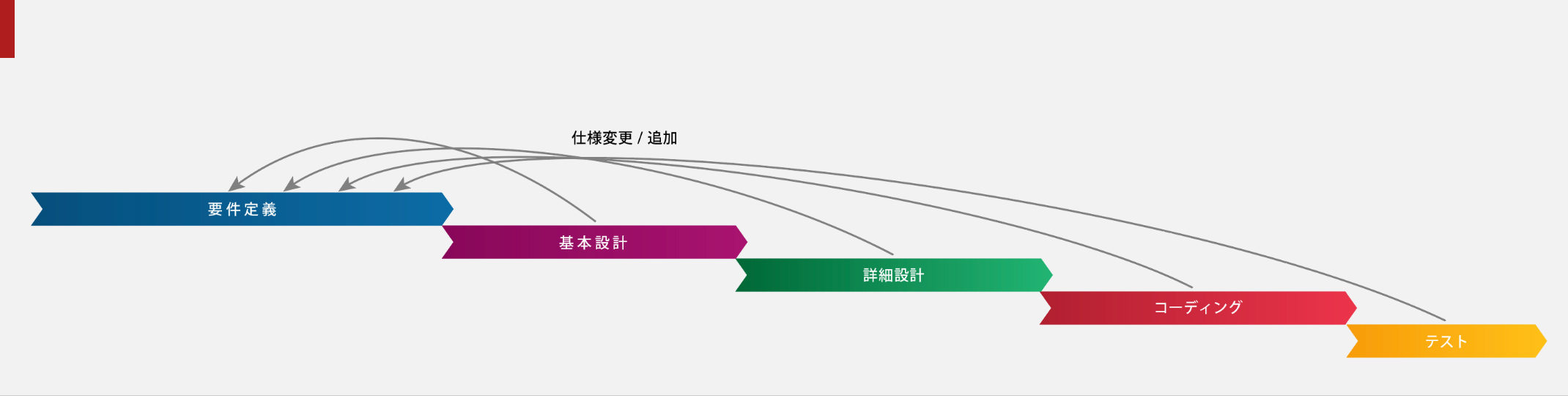
ウォーターフォール(一般的な手法)
-
メリット:
仕様や設計を確定するため日程や予算が明確
-
デメリット:
仕様変更や追加の戻りが大きく日程がずれやすい
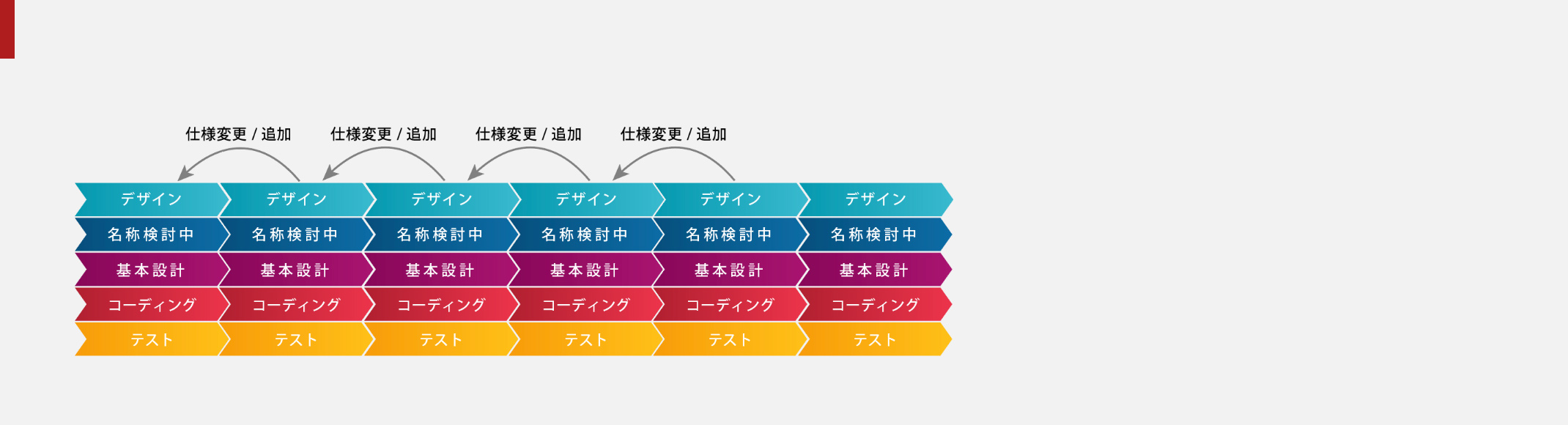
アジャイル(近年使われ始めている手法)
-
メリット:
仕様ごとに開発するため仕様変更や
追加に随時対応できる。 -
デメリット:
予算やスケジュールが組みにくい。
更にデータベースごと修正する必要が
あるため次フェーズに移行するまでに
時間が掛かる。
少なくとも1/2、最大1/5程度まで工期を短縮する開発手法「G-MAST」
もちろんウォーターフォールにもアジャイルにもメリットはあります。その双方のメリットを取り入れ、その上で独自のデータベース構造や
オリジナルのSQL構築手法を駆使して同じ規模のシステム開発を少なくとも1/2、最大1/5程度まで短縮し、尚且つ安定性の高いシステムを
作り上げるのが「G-MAST」です。
オリジナルのSQL構築手法を駆使して同じ規模のシステム開発を少なくとも1/2、最大1/5程度まで短縮し、尚且つ安定性の高いシステムを
作り上げるのが「G-MAST」です。
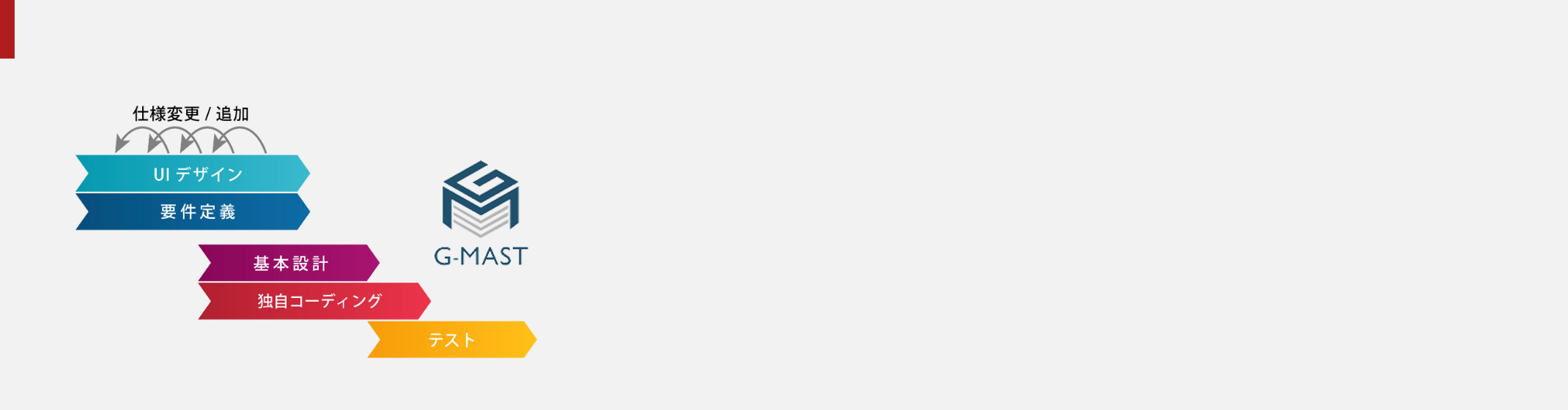
MAST(あらゆる規模の開発に最適、最速)
-
メリット:
UIデザインと同時に要件定義を行うため、
仕様が分かりやすく変更や追加が少なく済む。
(UIの動作は仮組みで対応)
さらに独自のDB構造を持つため要件定義を進めながら
基本設計とコーディング(実装)を組めるので
他の制作手法よりはるかに早い構築が可能になる。 -
デメリット:
斬新な手法のため、認知されにくい程度。
それぞれの手法の比較
| 制作手法 | ウォーターフォール | アジャイル |  |
|---|---|---|---|
| スケジュール |
△ 全行程を想定して組み立てるので組みやすいただし相当の時間を必要とする
|
○ ウォーターフォールよりも短縮できる場合があるが、逆にそれよりも延びるケースもある
|
◎ 全ての工程を戦略的に組み立てるため大規模でも短期間で組み立てが可能
|
| 予算組み |
◎ スケジュールがある程度予測できるので組みやすい
|
× スケジュールを決めにくいために難しい
|
◎ 全ての工程でスケジュールが予測できるので組みやすい
|
| 要件定義 |
△ 細部まで想定して組み立てるため堅牢だがテスト段階からの戻りで修正が頻繁に発生
|
○ 規模を広げずに策定するためある程度簡素
|
◎ UIデザインと同時進行で策定できるのでテスト段階からの戻りがほとんどない
|
| UI 制作 |
○ 仕様が決まっているのでそれに沿って制作できるが、変更や追加はそのまま負荷になる
|
○ 仕様を細かく細分化して制作するため、ある程度柔軟性が高い
|
◎ 要件定義と連動させるため完成までが早く、後の変更や追加が少なく済む
|
| 実 装 |
× 仕様追加や変更に逐次全ての箇所の修正が必要になるため効率が悪い
|
△ フェーズごとに組むためある程度は柔軟だがDBまで掘り下げる必要がある
|
◎ 独自のSQLとDB構造のため要件定義の途中から平行で進められ、仕様変更/追加に強い
|
独自のDB構築技術

「G-MAST」の要である独自のDB構築
一般的には条件に合わせたデータ構造を先に構築してから
それをコントロールするプログラムを書き起こします。
その場合、仕様変更や追加の際に頻繁にデータ構造を変更
しなければなりません。
それに対し「G-MAST」では、まずプログラムを先に書き起こし、
それに合わせた形で独自の手法でデータ構造を構築します。
この手法ですとプログラムの変更に素早く対応する事ができ、
工数に影響が大きいデータ構造の変更を最小限に留めることが
可能になります。
それをコントロールするプログラムを書き起こします。
その場合、仕様変更や追加の際に頻繁にデータ構造を変更
しなければなりません。
それに対し「G-MAST」では、まずプログラムを先に書き起こし、
それに合わせた形で独自の手法でデータ構造を構築します。
この手法ですとプログラムの変更に素早く対応する事ができ、
工数に影響が大きいデータ構造の変更を最小限に留めることが
可能になります。
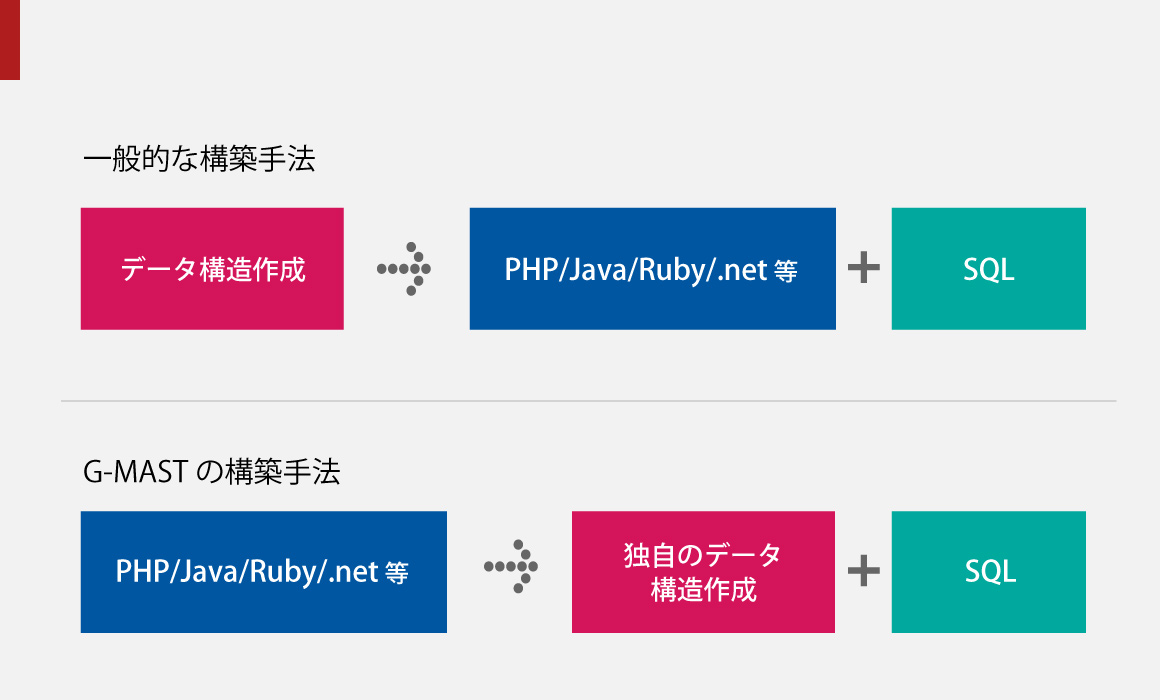
バックエンドの構築手法
独自DB構築を支える高度なSQLを中心とした処理
しかし、それを実現するには、ビジネスロジックの大半を高度なSQLで
表現することになりますが、残念なことに多くの技術者がSQLを苦手
としているため、プログラマーとしては理解が深いPHPや.Net、Ruby
など(以下、プログラミング言語)にその役割を与えようとします。
表現することになりますが、残念なことに多くの技術者がSQLを苦手
としているため、プログラマーとしては理解が深いPHPや.Net、Ruby
など(以下、プログラミング言語)にその役割を与えようとします。
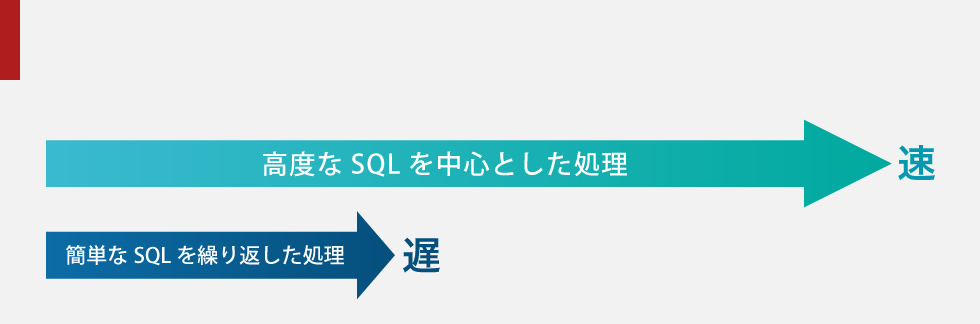
SQLとフロントエンドプログラムの処理速度の違い
高度なSQLを使っていれば高速に処理できるのですが、高度なSQLを避けてプログラミング言語を使って簡単なSQLを繰り返す処理をすると
システム全体の稼働速度はどんどん遅くなります。
また、G-MASTではSQLとプログラムの独立性が保たれているため、個別に修正することが可能になるためシステム変更にも強く保守性が高くなります。
システム全体の稼働速度はどんどん遅くなります。
また、G-MASTではSQLとプログラムの独立性が保たれているため、個別に修正することが可能になるためシステム変更にも強く保守性が高くなります。
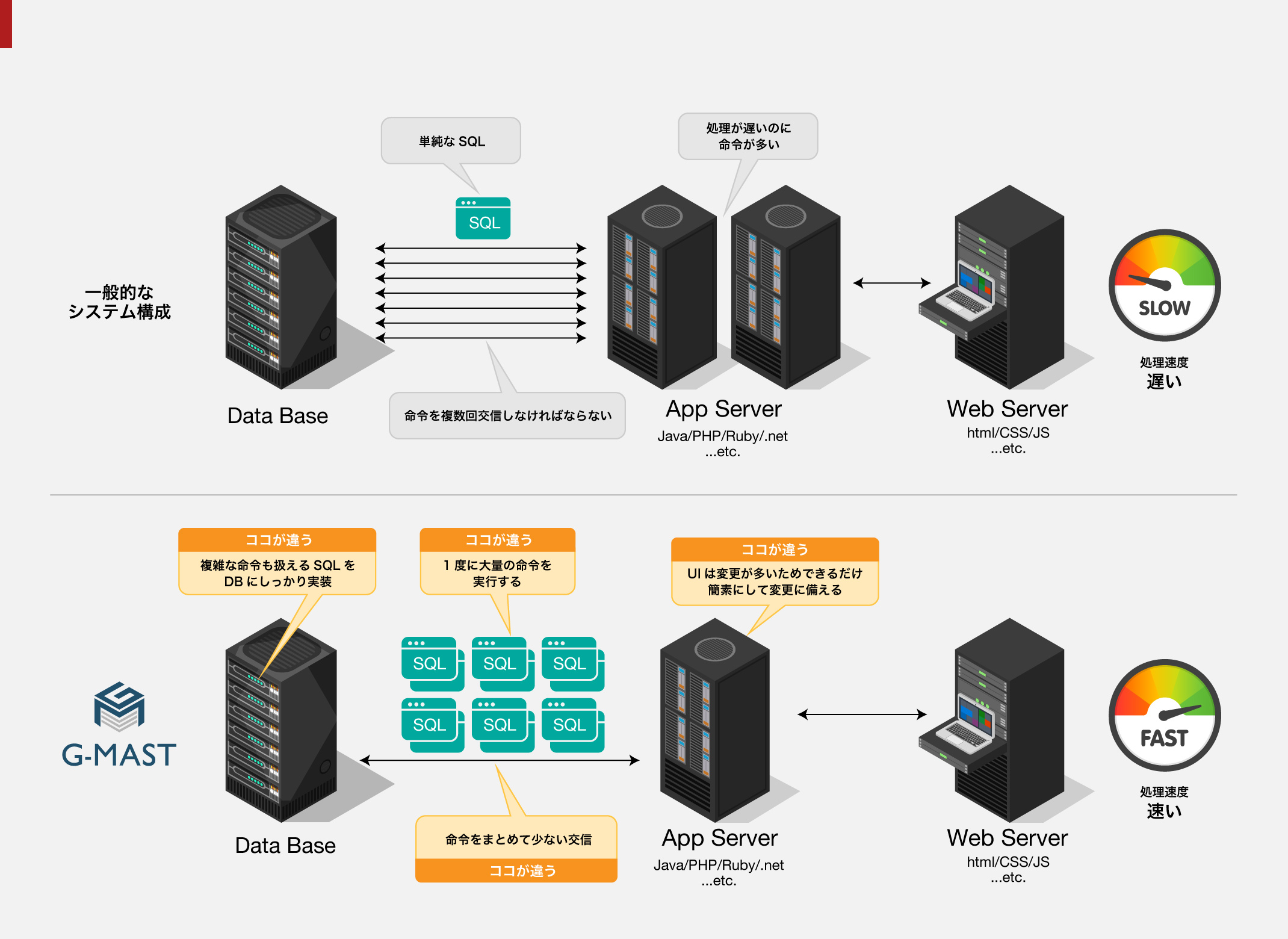
SQLの役割を重視した構築手法の比較
独自データ構造とオリジナルSQLによる安定性のメリット
データ構造をプログラミング言語から分離させて後から作ることによって、速さだけではなく安定性のメリットも享受することができます。
ほとんどの場合、仕様変更が発生するとプログラムとデータ構造の不一致が大きくなります。
ところが、そうするとどんどん歪になるデータベースと帳尻を合わせるためのプログラムを追加してしまうため、
こちらもどんどん歪なプログラムになってしまいます。当然、歪なプログラムは後の修正も手間が掛かるうえ、
パフォーマンスや安定性に大きく影響が出てきます。それは規模が大きければ大きいほど顕著になっていきます。
G-MASTはシンプルに構成され、仕様変更や追加があってもプログラミング言語とデータベースの境界がいびつにならない工夫がされています。
そのため、将来にわたり安定的に運用することが可能になります。
ほとんどの場合、仕様変更が発生するとプログラムとデータ構造の不一致が大きくなります。
ところが、そうするとどんどん歪になるデータベースと帳尻を合わせるためのプログラムを追加してしまうため、
こちらもどんどん歪なプログラムになってしまいます。当然、歪なプログラムは後の修正も手間が掛かるうえ、
パフォーマンスや安定性に大きく影響が出てきます。それは規模が大きければ大きいほど顕著になっていきます。
G-MASTはシンプルに構成され、仕様変更や追加があってもプログラミング言語とデータベースの境界がいびつにならない工夫がされています。
そのため、将来にわたり安定的に運用することが可能になります。
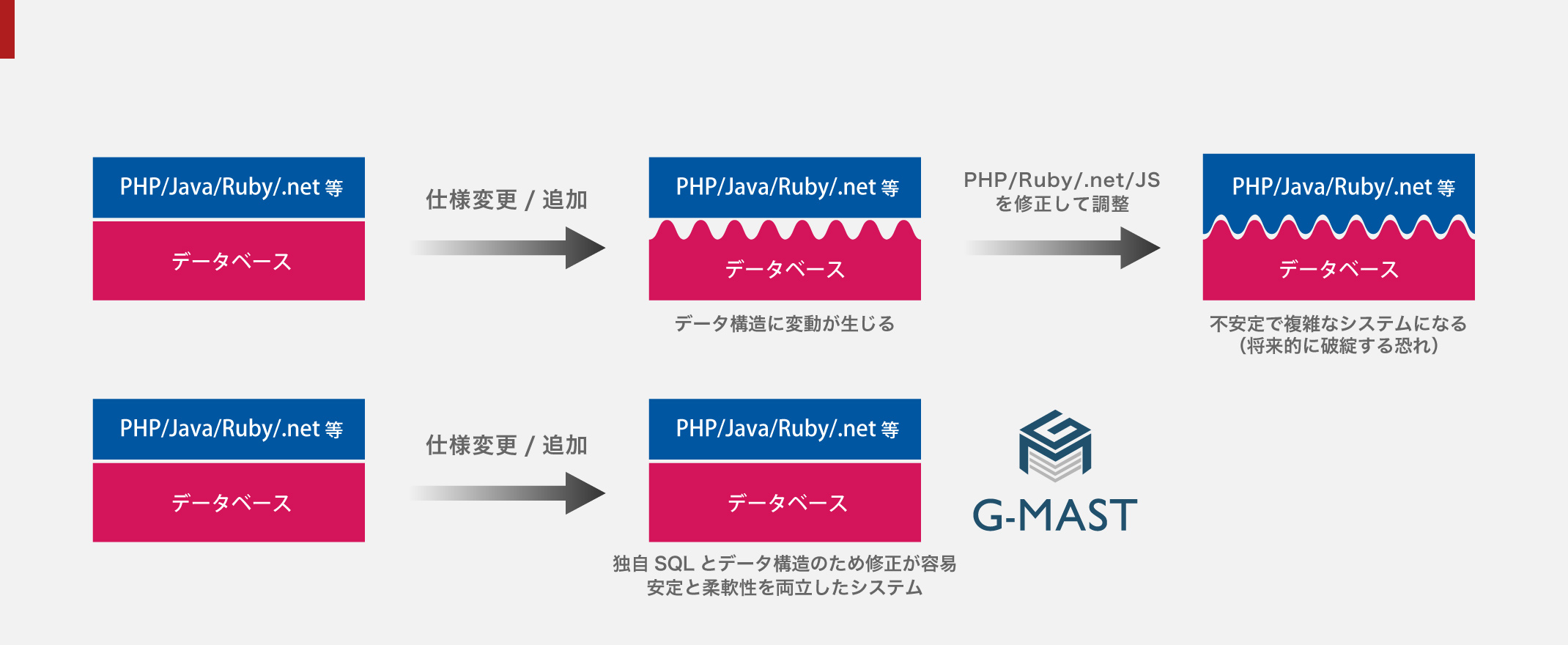
安定性と柔軟性/拡張性に優れたG-MAST

短期開発の切り札
ここまで大まかにご説明致しましたが
「G-MAST」の概要はお分かり頂けましたでしょうか。
技術的な疑問や本当に効果があるのか?など、
何かお知りになりたい事がございましたら
お気軽にお問い合わせ下さい。
既存や新規システムのパフォーマンス改善や
システムに関わる無料カウンセリングも承っております。
ぜひ一度「G-MAST」の実力をお試し下さい。
「G-MAST」の概要はお分かり頂けましたでしょうか。
技術的な疑問や本当に効果があるのか?など、
何かお知りになりたい事がございましたら
お気軽にお問い合わせ下さい。
既存や新規システムのパフォーマンス改善や
システムに関わる無料カウンセリングも承っております。
ぜひ一度「G-MAST」の実力をお試し下さい。
